How to Use a Computer at Home: A Beginner-Friendly Step-by-Step Guide
How to Use a Computer at Home: A Beginner-Friendly Step-by-Step Guide
To learn how to use a computer at home, start by identifying the main parts, turning the device on, using the desktop, connecting to Wi-Fi, opening applications, managing files, and browsing safely. These basic computer skills can be learned gradually, even if you have little or no previous experience.
This guide follows the natural order of a first computer session. You will practice everyday tasks such as typing, saving a document, sending an email, installing updates, protecting your information, and solving common beginner problems without changing advanced settings.
Quick Summary
- 🖥️ Start with the hardware: identify the screen, keyboard, mouse, ports, power button, and charger.
- 🌐 Learn the essential path: sign in, connect to Wi-Fi, open a browser, save a file, and send an email.
- 🔒 Stay cautious: check website addresses, use strong passwords, avoid unexpected downloads, and keep the computer updated.
- 🔁 Build confidence through repetition: repeat a small set of safe tasks instead of trying to master every feature at once.
What Do You Need Before You Begin?
A beginner needs a computer, its power cable, login details, and a comfortable place to work. Hardware means the physical parts you can touch, while software means the programs that run on the device. Windows, macOS, and Chromebooks use different menus and icons, but the basic ideas remain similar.
Prepare the items below before starting your first practice session. Keeping them nearby prevents unnecessary interruptions and makes the setup easier to follow.
- A laptop or desktop computer with its charger or power cable.
- A stable surface with enough room for the screen, keyboard, and mouse.
- Your computer password, PIN, or other sign-in method.
- Your home Wi-Fi name and password.
- A notebook for writing down non-sensitive instructions or questions.
Identify the Main Parts of a Laptop or Desktop
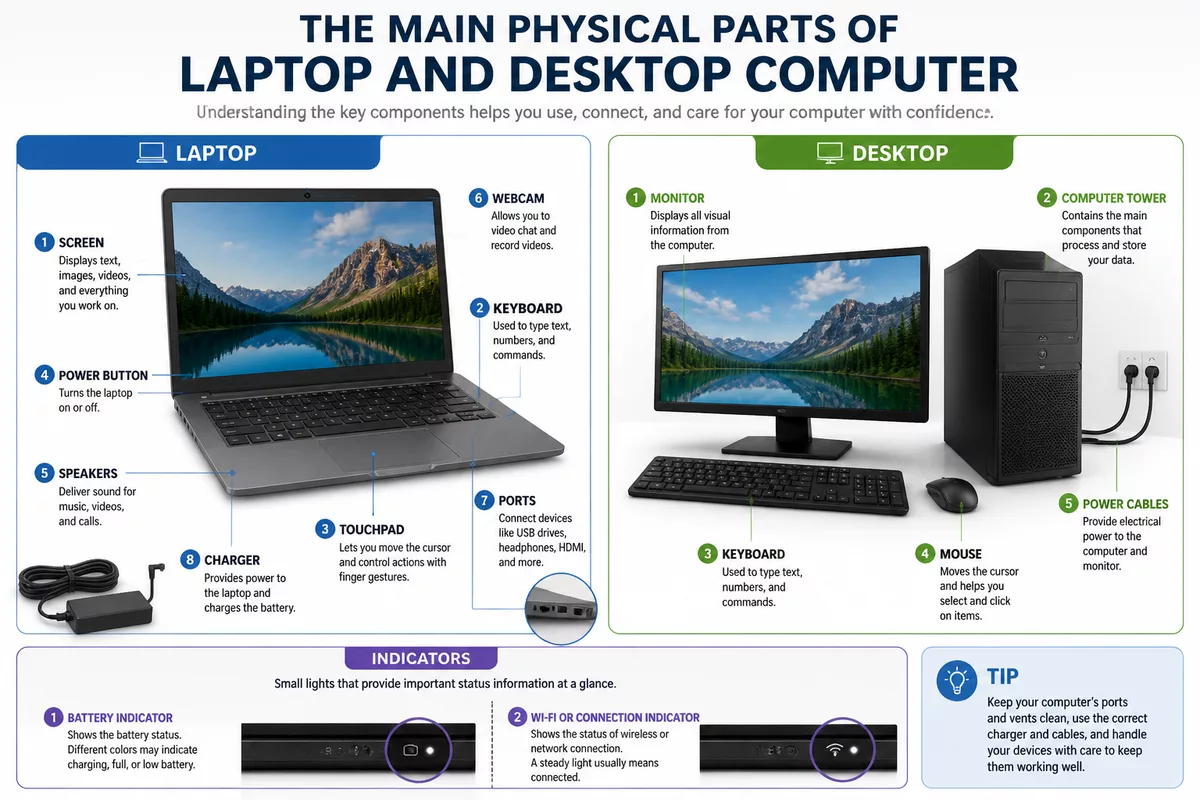
A laptop combines the screen, keyboard, touchpad, battery, speakers, webcam, and computer components in one portable device. A desktop computer usually separates the monitor, computer tower, keyboard, mouse, speakers, and power cables, so checking each connection is more important before switching it on.
Look around the outside of the device before pressing any buttons. Battery and Wi-Fi indicators usually appear on the screen, in the taskbar, in the system menu, or near the physical charging port, depending on the operating system.
| Device | Typical structure | Useful for | Beginner consideration |
|---|---|---|---|
| Laptop | Screen, keyboard, touchpad, battery, and computer in one unit | Writing, browsing, email, and portable use | Check the battery and charger position |
| Desktop computer | Separate monitor, tower, keyboard, and mouse | Stable home use with a larger workspace | Check power and display cables |
| Tablet | Touchscreen with an on-screen keyboard | Reading, browsing, and simple communication | Touch gestures replace a mouse |
| Smartphone | Small touchscreen with mobile applications | Messages, calls, browsing, and quick tasks | The smaller screen can make typing harder |
How Do You Turn On a Computer and Understand the Desktop?
Connect the charger or power cable, press the power button once, and wait for the startup screen. After signing in with a password or PIN, identify the desktop, application icons, taskbar or dock, system menu, notifications, and open windows. These areas help you launch programs and control the computer.
Do not press the power button repeatedly if the startup screen takes a little time to appear. Check that the cable is connected, the screen has power, and the device is not simply showing a dim display.
Recognize the Main Screen Areas
The desktop background is the main work area behind open applications. An application window contains the program you are currently using, while the taskbar or dock provides quick access to programs and system controls.
Windows commonly uses the Start menu and taskbar, macOS uses the Applications folder and Dock, and Chromebooks use their own launcher and shelf. Menu names and icon positions may change after updates, so read labels instead of relying only on appearance.
- Desktop: the background area behind open windows.
- Application icons: shortcuts to programs.
- Taskbar or dock: an area for opening programs and switching between them.
- System menu: controls for Wi-Fi, sound, battery, settings, and power.
- Notifications: messages about updates, new mail, or system events.
- Open windows: visible programs or documents currently in use.
If an icon is unfamiliar, pause and check its name before opening it. A beginner does not need to recognize every symbol immediately.
How Do You Use a Mouse, Touchpad, and Keyboard?
Use a mouse or touchpad to point, click, select, drag, and scroll, and use the keyboard to enter text and commands. A touchpad performs the same basic navigation as a mouse through finger movements. Practice each action slowly in a simple text application before using it in an important document.
The keyboard includes letter keys, number keys, the Spacebar, Enter, Backspace, Shift, Caps Lock, and arrow keys. Backspace removes text before the cursor, while the arrow keys move through a line or document.
Complete a Short Practice Exercise
- Open a simple text application from the Start menu, Applications folder, taskbar, or dock.
- Type a short sentence such as “I am practicing basic computer skills.”
- Use the mouse or touchpad to select part of the sentence.
- Copy the selected text, click elsewhere, and paste it.
- Use the Undo command to reverse the change.
- Close the application only after checking whether the text needs to be saved.
Common shortcuts can make work faster, but shortcut use is optional. Look for visible commands such as Copy, Paste, Undo, Save, Select All, and Search if remembering key combinations feels difficult.
Adjust the pointer speed in system settings if the cursor moves too slowly or quickly. An external mouse can also help when touchpad movement feels uncomfortable.
How Do You Connect to Wi-Fi and Browse the Internet?
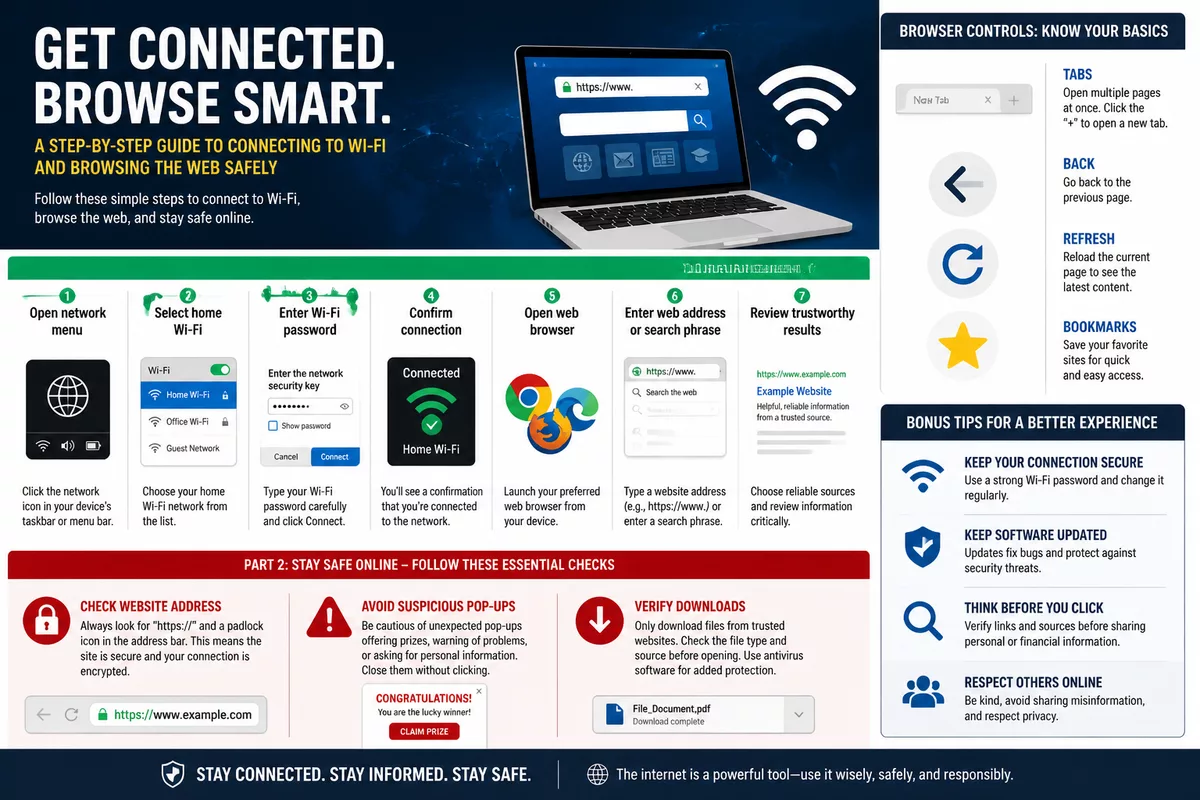
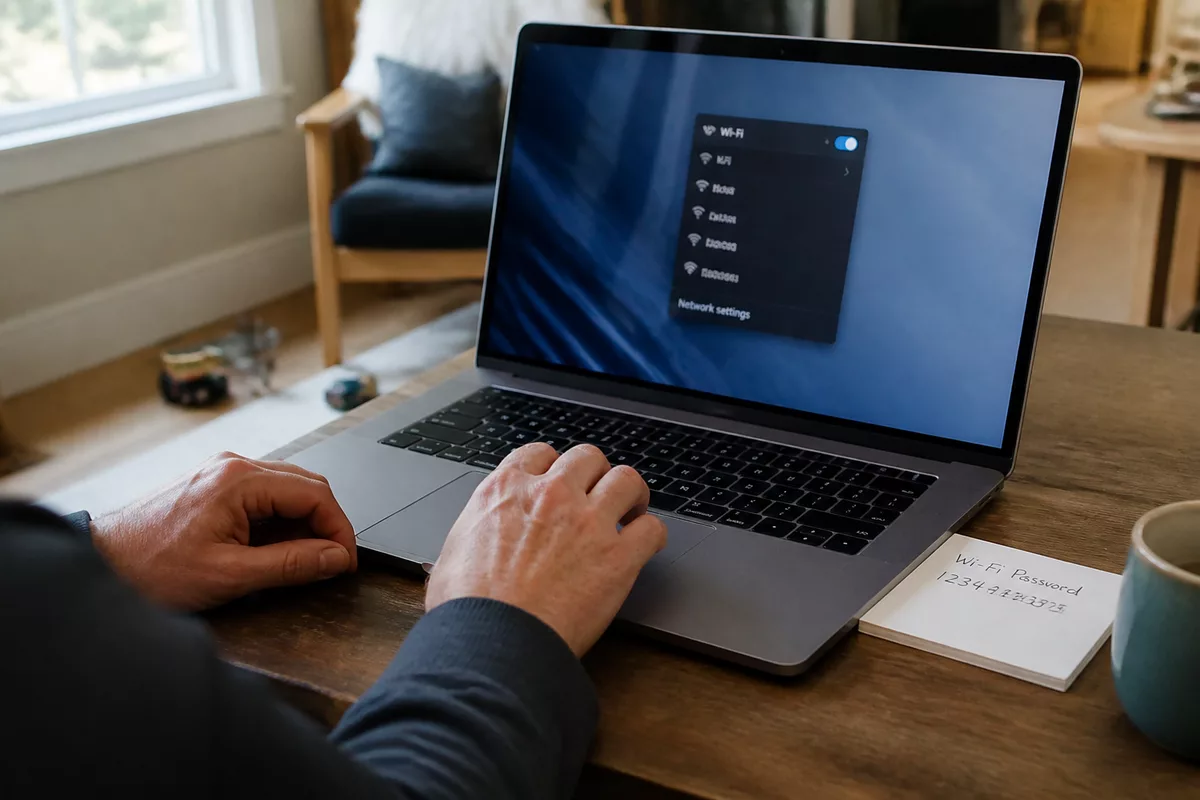
To connect to Wi-Fi, open the network menu, select the correct home network, enter the Wi-Fi password, and confirm that the connection is active. Then open a web browser, enter a web address or search phrase, and review results from trustworthy sources rather than clicking the first unfamiliar link.
A web browser is the application used to visit websites. A search engine helps you find pages, while a website is a collection of online pages with its own web address. Tabs let you keep several pages open, the Back button returns to a previous page, Refresh reloads the current page, and bookmarks save useful addresses.
Use specific search terms instead of a single broad word. For example, a search for “local library opening hours” is more useful than searching only for “library.” Compare information across reliable sources, especially when a page asks for money, personal details, or a download.
Troubleshoot a Wi-Fi Connection
Start with the simplest checks before changing advanced network settings. The correct action depends on whether the problem affects one device or every device in the home.
- Check that Wi-Fi is enabled and that the correct network name is selected.
- Re-enter the Wi-Fi password carefully, paying attention to capital letters.
- Check the router and move closer to it if the signal is weak.
- Reconnect to the network or restart the computer when appropriate.
- Contact the internet provider if the connection remains unavailable on several devices.
Browse Safely as a Beginner
Check the website address before entering personal or payment information. A familiar-looking page can still be an imitation, particularly when a message creates urgency or asks you to act immediately.
When a pop-up or message pressures you to act quickly, stop, close it, and verify the request through the organization’s official website or application.
- Close suspicious pop-ups instead of clicking unexpected buttons.
- Avoid unexpected downloads and verify the source before opening a file.
- Never provide passwords or sensitive information in response to pressure.
- Use specific searches and compare information from trustworthy sources.
How Do You Open Applications and Manage Files?
Applications are programs used for writing, browsing, viewing photos, communicating, and completing other tasks. Open an application through the Start menu, Applications folder, taskbar, or dock, then save your work before closing the window or responding to a prompt.
Files are individual items such as documents, photographs, downloads, or spreadsheets. Folders are containers that help group related files, and a file manager lets you find, rename, move, and search for them.
Create and Save a Simple Document
- Open a writing application.
- Type a short message that does not contain private information.
- Select Save or Save As.
- Choose a clear file name and a suitable folder, such as Documents.
- Close the document and reopen it from the file manager to check that it was saved.
Save regularly during longer tasks. Frequent saving reduces the chance of losing work if an application closes unexpectedly or the computer needs to restart.
Create Folders and Organize Files
Create simple folders such as Documents, Photos, and Downloads. Use consistent file names, and include a date when it helps you identify different versions of the same document.
- Find a file by searching for its name.
- Rename a file when the original name is unclear.
- Move files into the folder where you expect to find them later.
- Check the Recycle Bin or Trash before permanently deleting anything.
- Review the Downloads folder and remove only files you recognize.
Install Applications Carefully
Use the official app store or the application developer’s official website. Review requested permissions, avoid unfamiliar bundled software, and do not disable built-in security features to complete an installation.
Choose software that matches your task instead of installing several programs that perform the same function. Keep the installer source visible until the process is complete, then check that the application opens normally.
How Do You Use Email to Read, Send, and Share Messages?
Email uses an address to deliver messages to an inbox. Each message normally includes a recipient field, subject line, message body, and optional attachment. You can read, compose, reply to, forward, and delete messages through a reputable provider or an existing account.
Use a strong, unique password and add recovery information where appropriate. Treat unexpected attachments, links, payment requests, and urgent messages with caution, even when the sender’s name looks familiar.
Send a First Test Email
- Open your email application or email website.
- Choose New Message, Compose, or a similar command.
- Address the message to yourself or a trusted contact.
- Write a clear subject and a short message.
- Attach a harmless practice file if needed.
- Check the recipient and attachment name before selecting Send.
Check the recipient carefully before sending. A message sent to the wrong address can expose information that was meant to remain private.
How Do You Keep the Computer Updated and Protect Your Information?
Computer updates can include security fixes, bug corrections, and performance improvements. Check for updates through the computer’s system settings, save your work before restarting, and keep the device connected to power during a major update.
Use long, unique passwords and enable multifactor authentication when available. Back up important files to a reputable cloud service or external drive, and download software only from trusted sources.
Protecting a computer is mostly a matter of consistent habits: update the device, protect accounts, back up important files, and pause before opening unexpected content.
Fake virus alerts often use alarming language or urgent instructions. Close the browser window or alert without calling an unfamiliar number, installing unknown software, or granting remote access.
Build Simple Maintenance Habits
- Restart the computer when appropriate instead of leaving every application open indefinitely.
- Remove unused applications through normal system controls.
- Review the Downloads folder and organize important documents.
- Check that backups can actually be opened and recovered.
- Keep the computer’s physical vents and workspace free from unnecessary obstruction.
The Microsoft Learn path titled Exploring basic computer concepts is labeled for beginners and contains four modules covering computer components, how computers work, application development history, and computer security. These topics can provide optional background after you are comfortable with everyday tasks.
How Do You Shut Down Correctly and Solve Common Problems?
Save documents, close applications, and use the operating system’s Shut Down option instead of unplugging the computer. Sleep mode suits a short break, while a normal shutdown is appropriate when you have finished using the device for a longer period.
If the computer appears frozen, wait briefly before forcing a restart. Hold the power button only when normal controls do not respond, because interrupting a task can cause unsaved work to disappear.
Beginner Troubleshooting Checklist
| Problem | First checks | Safer next action |
|---|---|---|
| Computer is slow | Close unused applications, restart, check updates, and review storage | Remove only files or applications you recognize |
| Mouse or keyboard fails | Check batteries, cables, Bluetooth, USB connections, and another port | Use an alternative input device if available |
| Screen is blank | Check power, brightness, charger, and display connections | Restart only after checking the physical connections |
| Program is frozen | Wait briefly and check whether the application responds | Close it through system controls, then restart if necessary |
| Password is forgotten | Identify whether it is the computer or email account password | Use the official account recovery process |
How Can You Practice These Basic Computer Skills at Home?
Practice one short sequence repeatedly: turn on the computer, sign in, identify the desktop controls, connect to Wi-Fi, search for a familiar topic, create a document, save it, send a test email, and shut down correctly. Repetition makes the sequence familiar without requiring advanced technical knowledge.
Use the checklist below as a first-session routine. Stop after any step that feels unclear, read the visible labels, and avoid changing settings you do not understand.
- Turn on the computer and sign in.
- Identify the desktop, system menu, taskbar or dock, and open windows.
- Use the mouse, touchpad, and keyboard for a short typing exercise.
- Connect to Wi-Fi and search for a familiar topic.
- Create, save, rename, and find a simple document.
- Send a test email with a harmless practice attachment.
- Install available updates and back up one important file.
- Shut down the computer using the normal system control.
Final Beginner Computer Checklist
- Turn on and sign in.
- Use the mouse, touchpad, and keyboard.
- Connect to Wi-Fi.
- Browse the web safely.
- Open and close applications.
- Save and organize files.
- Send email and attachments.
- Install updates and protect important information.
Computer confidence comes from repeating a small set of everyday tasks safely, not from mastering every computer feature at once.
Key Tips
- 🖥️ Learn the physical parts before changing settings.
- ⌨️ Practice typing, clicking, scrolling, copying, pasting, and undoing in a harmless document.
- 🌐 Connect to the correct Wi-Fi network and check website addresses before sharing information.
- 📁 Save documents with clear names and place them in recognizable folders.
- 🔐 Use official recovery, update, and installation channels whenever something goes wrong.
Frequently Asked Questions
How long does it take to learn basic computer skills?
The time depends on the tasks you want to perform and how often you practice. Many beginners can start with a short routine involving sign-in, browsing, saving a file, and email, then add new tasks gradually.
Is a laptop or desktop computer better for a beginner?
A laptop is convenient when you need portability and combines the screen, keyboard, and computer in one device. A desktop can offer a stable setup with a larger monitor, but it requires more separate cables and components.
What should I do if I forget my computer or email password?
Use the official recovery option provided by the computer account or email provider. Avoid unofficial password tools, and never give your password to someone who contacts you unexpectedly.
How do I print a document from a computer?
Open the document and choose Print from the application’s File menu or another visible print command. Select the correct printer, check the preview and page range, then confirm that the printer has paper and is connected.
How can I tell whether a pop-up or email is dangerous?
Be cautious when a message creates urgency, requests a password or payment, includes an unexpected attachment, or sends you to an unfamiliar website. Close the message, avoid clicking its links, and verify the request through the organization’s official website or application.